Create a menu section
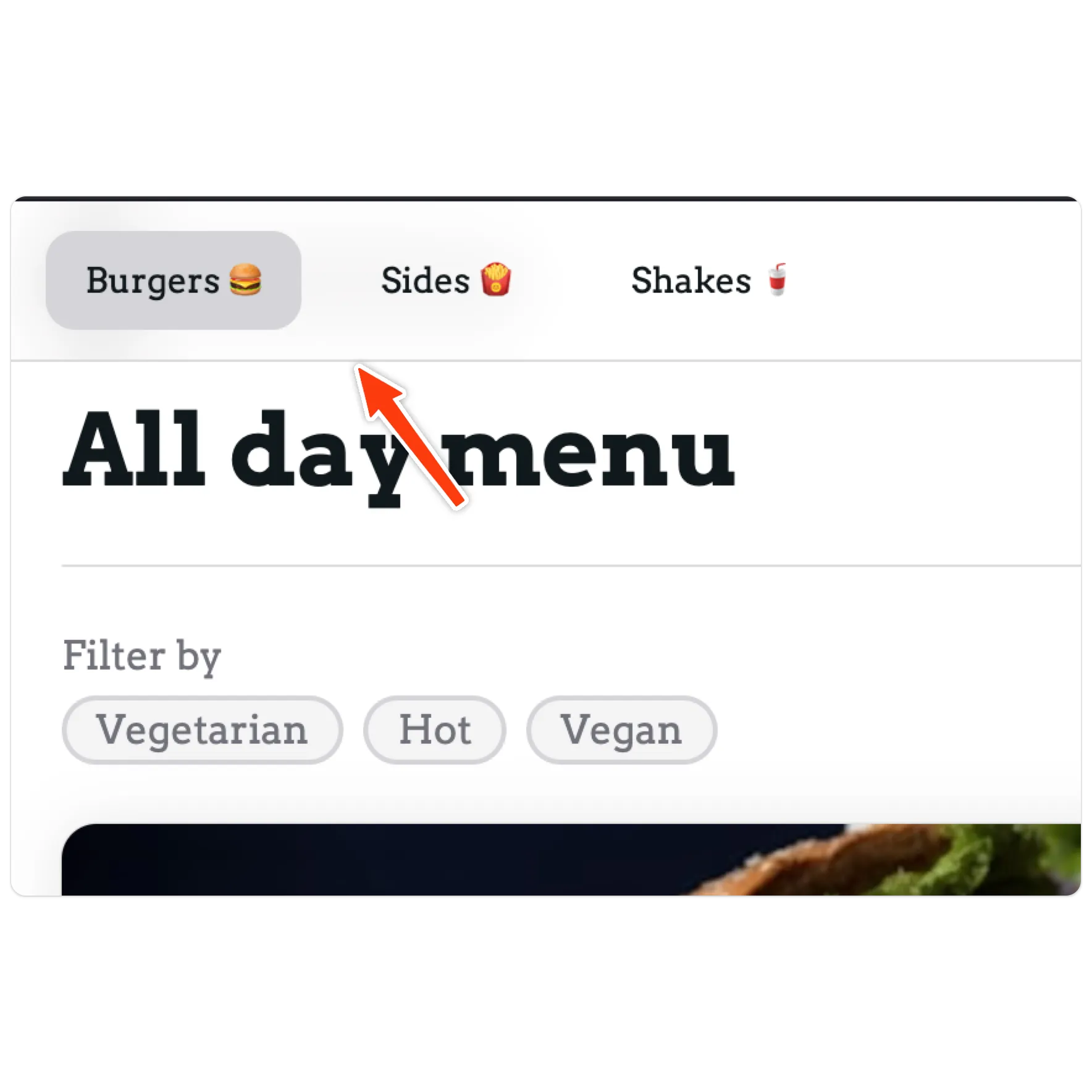
Each section that you add to your menu will appear at the top of your menu. You can add emojis to sections to make them stand out.
Description and cover image
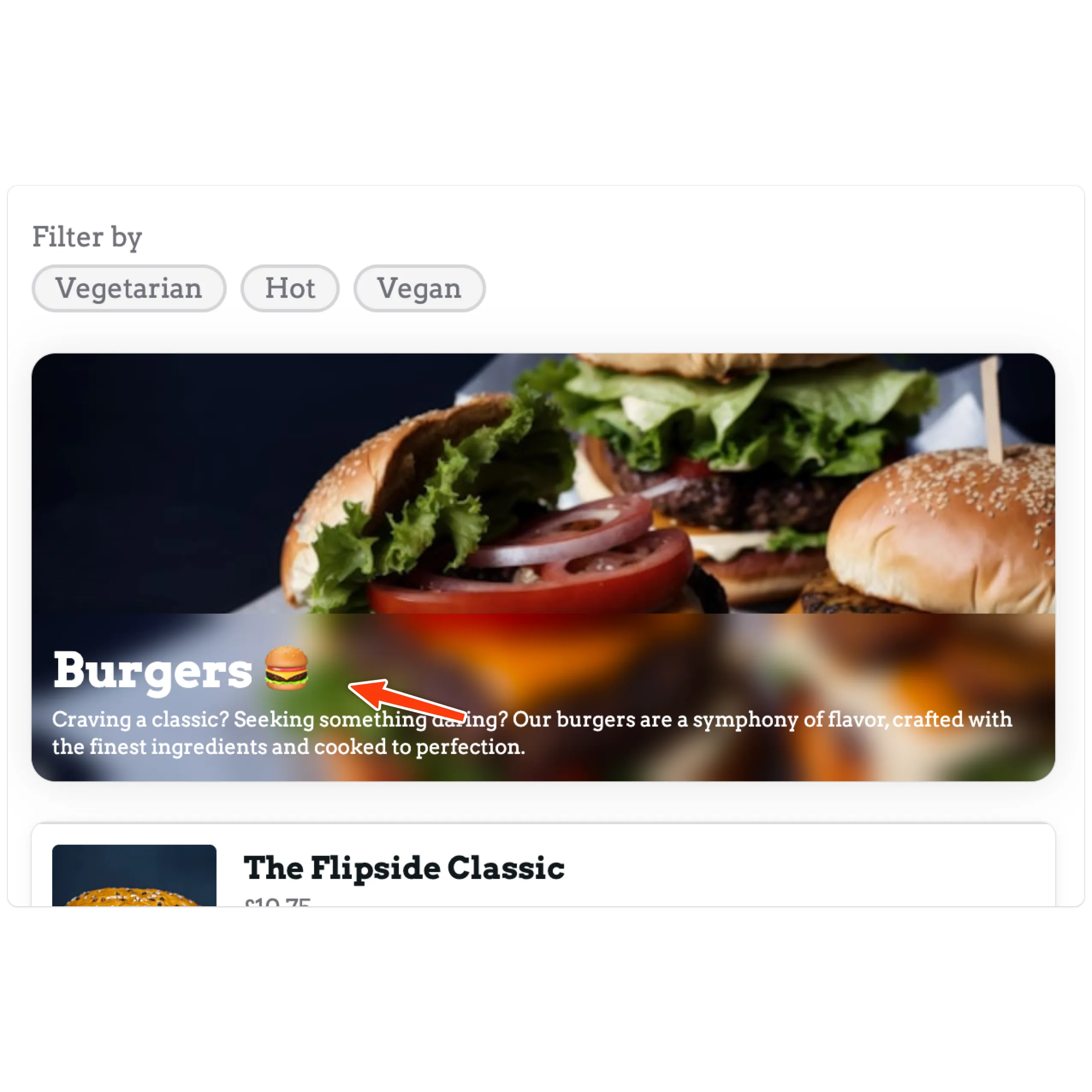
Section titled “Description and cover image”Your section can optionally have a description and cover image. If you add a description, keep this short and to the point. This description will appear below the section name.
Active
Section titled “Active”When you add a new section it will be active by default. You may wish to temporarily remove the section from your menu. To do this, uncheck ‘Active’ and save your menu section.
Menu items
Section titled “Menu items”These are items that are categorised by your section. For example, the section could be burgers and items could include ‘cheese burger’, ‘chicken burger’ etc.
- Active - You can toggle the visibility of a menu item by checking or unchecking the active toggle. This is handy if you want to temporarily take an item off your menu.
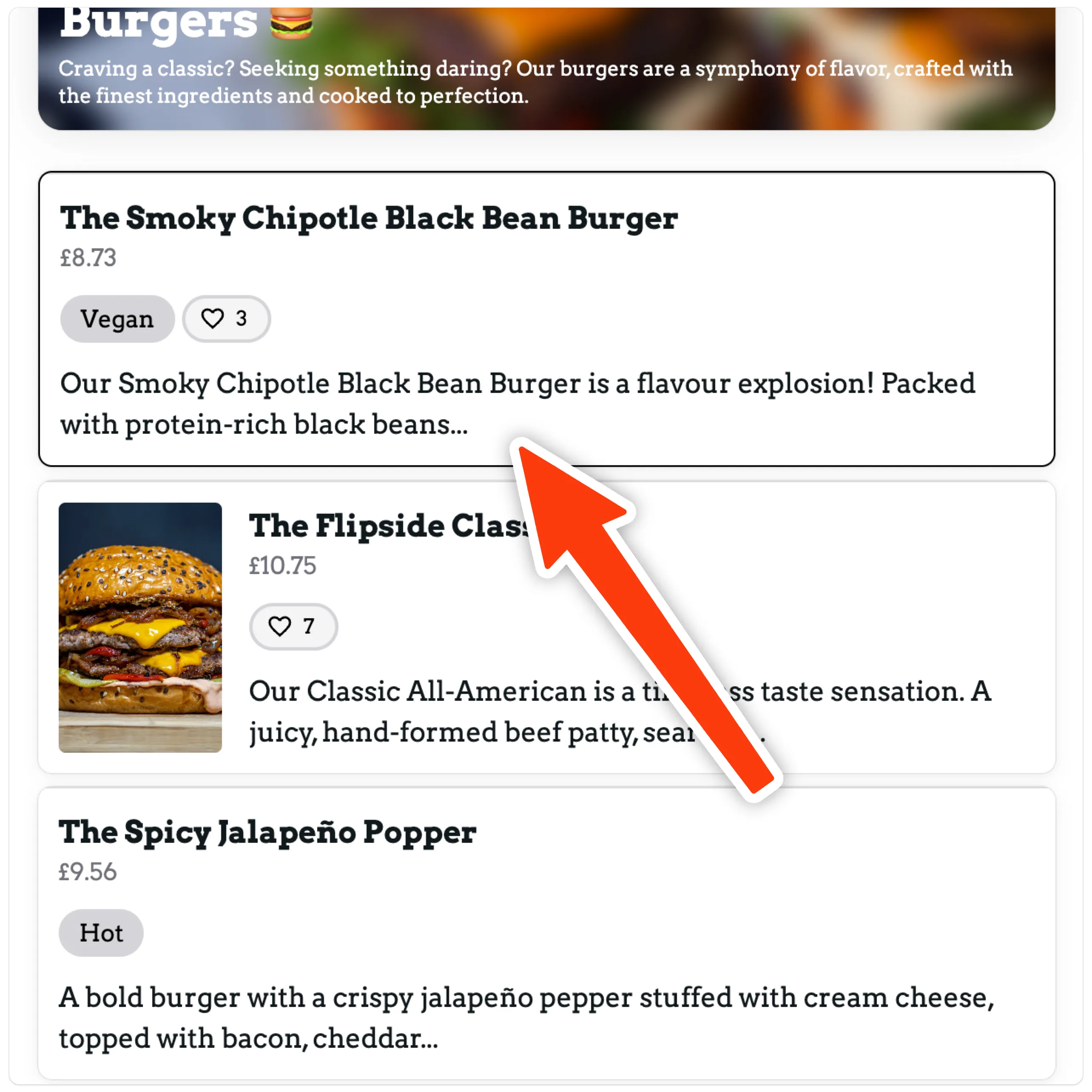
- Pinned - If you pin an item this will move the item to the top of section and add a border around the card on your menu.
Description
Section titled “Description”Enter the text to describe your item here. You have various editing options to choose from:
From left to right:
- Bold
- Italic
- Underline
- Unordered list (bullet points)
- Ordered list (numbered list)
- AI Enhance
- Undo
- Redo
AI Enhance
Section titled “AI Enhance”This feature is available on all plans. To use it, enter a basic summary of your menu item. This could be ‘chicken burger with salad in a brioche bun’. Press the AI Enhance button and AI will elaborate and enhance your copy.
AI is great but isn’t always perfect. Therefore, we recommend checking the content is appropriate.
Allergen information
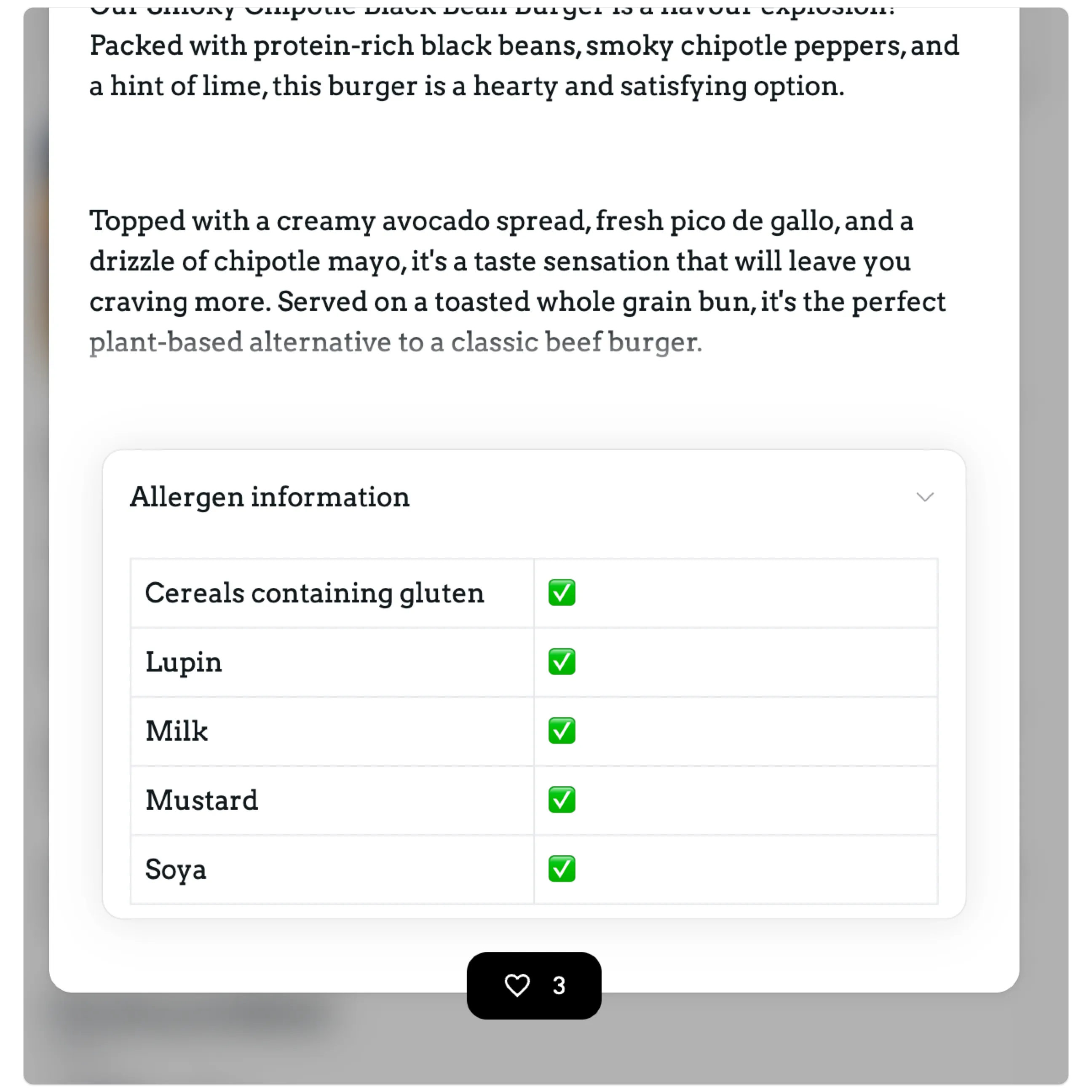
Section titled “Allergen information”In this section you can add any allergen information. Start by pressing ‘Add allergen’, the left column should be the allergen name and right column should indicate if the item includes it. This can be indicated via text, for example, ‘yes’ or you could include an emoji tick ✔️.
Add as many as you require by pressing ‘Add allergen’.
This information displays under your menu item description once pressed:
Pricing
Section titled “Pricing”Each item can have multiple prices. For example, you could have a medium burger and a large burger. You can add a new price by clicking ‘Add pricing’.
Deleting
Section titled “Deleting”You can delete an item from your menu by pressing the red bin icon:
Cloning
Section titled “Cloning”If an item has the same details as another item you could save time by cloning your item. Press the clone button to do this:
Changing the order
Section titled “Changing the order”You can choose the order in which your items appear on your menu. With all your items collapsed:
Click and hold on the up and down arrows then drag the item to its desired location.
Once your done. Don’t forget to save.